How to Publish Your First Project on GitHub?

 09.21.2026
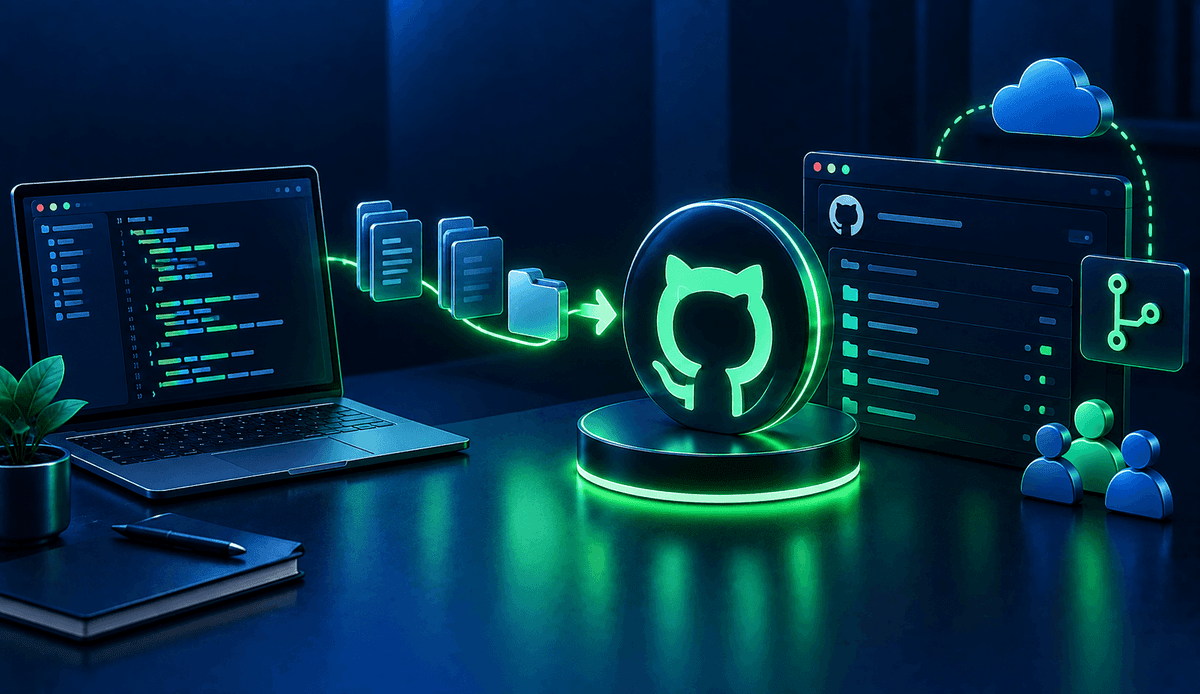
GitHub is a popular platform used to store software projects online, track the development process, and share projects with others. To upload your first project to GitHub, you can create a Git repository, commit your files, and push your project to a remote repository.
What is GitHub?
GitHub is a platform that allows you to host repositories created with Git online and collaborate on projects. Code, project files, and change history can all be stored within a repository.
Git and GitHub are not the same thing. Git is a version control system, while GitHub is a platform used to store Git repositories remotely and collaborate on projects.
How to create a repository on GitHub?
First, log in to your GitHub account and create a new repository. You can use the New repository option in the top-right section of GitHub.
When creating a repository, you can specify the project name, description, and visibility settings. If you plan to upload an existing project folder from your computer, it may be easier to start without initializing the repository with a README, .gitignore, or license file, as recommended by GitHub.
How to prepare a project with Git?
You can start by turning the project folder on your computer into a Git repository. Open the terminal and navigate to the project folder.
Then run the following command:
git init -b mainThis command initializes the folder as a Git repository and creates an initial branch named main. If you are not using a suitable version of Git, you can change the branch name separately.
You can use the git status command to check the status of the repository:
git statusThis command allows you to see changes that are tracked by Git but have not yet been committed.
How to add project files to Git?
After creating a Git repository, you need to add the project files to the staging area. The git add command is used for this.
git add .The . symbol adds the appropriate changes in the project folder to the staging area. If you want to add a specific file, you can specify its name:
git add index.htmlAt this stage, the files have not yet been uploaded to GitHub. First, these changes need to be saved to the Git history as a commit.
How to create a Git commit?
A commit is a record of changes made to a project at a specific point in time. After adding the files to the staging area, you can create your first commit with the following command:
git commit -m "Initial commit"A commit message that clearly describes the change makes it easier to track the project history. For a first project, you can use a simple message such as Initial commit.
After this process, the first record is created in your project's local Git history.
How to connect a local project to a GitHub repository?
To connect the repository you created on GitHub to the Git repository on your computer, you need to add the remote repository address.
You can copy the repository URL from the Quick Setup section on the GitHub repository page. Then, use the following command in the terminal:
git remote add origin https://github.com/USERNAME/PROJECT-NAME.gitHere, origin is the name of the remote connection representing the GitHub repository. In Git, origin is the commonly used default name for a remote.
To verify that the connection was created correctly, run:
git remote -vHow to upload a project to GitHub?
Once your local repository and GitHub repository are connected, you can push your project to GitHub. The git push command is used for this.
git push -u origin mainThis command pushes the commits from the main branch to the remote repository on GitHub. The -u option establishes a tracking relationship between the local branch and the remote branch.
Once the initial push is complete, you can refresh your GitHub repository page to see your project files.
What should you consider when uploading a project to GitHub?
Before pushing a project to GitHub, it is important to check whether the repository contains information that should not be shared. In particular, sensitive information used to run applications should not be included directly in the code.
GitHub's official documentation specifically recommends not pushing sensitive information such as passwords and API keys to a repository using git add, commit, or push.
Before publishing your first project, you can check the following:
- Are there any API keys or passwords in the code?
- Have unnecessary or temporary files been added to the repository?
- Is there a README file explaining how to run the project?
- Is the repository's visibility setting appropriate for the purpose of the project?
Especially for personal projects, adding a README file can be useful for explaining the purpose of the project and how it can be used by others.
How to update a project published on GitHub?
After uploading your project to GitHub, you can continue making changes to your local files. To push new changes to GitHub, you generally follow the same three-step process.
git add .
git commit -m "Added a new feature"
git push
The first command adds the changes to the staging area. The second command records the changes as a commit. The final command pushes the new commit to the remote repository on GitHub.
This workflow keeps your project up to date both on your local computer and on GitHub.
What are the different ways to upload a project to GitHub?
You do not have to use only the terminal to upload your first project to GitHub. Tools such as GitHub CLI and GitHub Desktop can also make the process easier.
GitHub Desktop allows users who prefer not to use the command line to manage their local repositories through a graphical interface. An existing Git repository can be added to GitHub Desktop using the Add Local Repository option.
GitHub CLI allows you to perform tasks such as creating repositories and pushing an existing local project to GitHub directly from the command line.
The basic workflow for publishing your first project on GitHub is to create a repository, initialize the project with Git, add the files to the staging area, create a commit, define the GitHub repository as a remote, and push the changes with git push. Once you learn these steps, you can move on to GitHub features such as branches, merges, and pull requests and start working on more comprehensive projects.